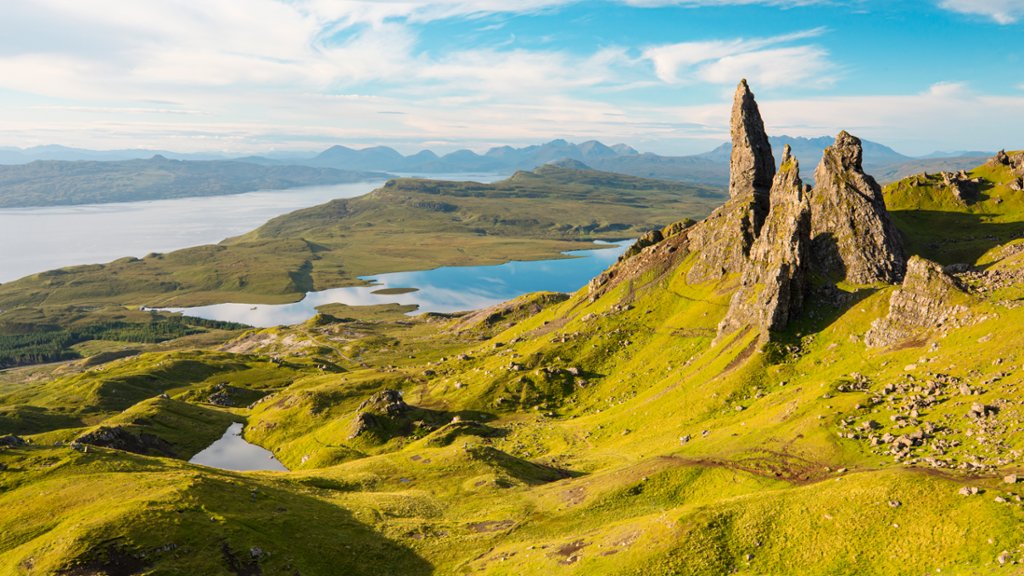
The Storr, Isle of Skye, Scotland
Sign in to add this photo to your favorites and desktop wallpaper rotation.
The Storr is a prominent rocky hill on the Trotternish peninsula of the Isle of Skye in Scotland. It is known for its iconic rock formations, including the Old Man of Storr, a large pinnacle that stands prominently on the hillside. The Storr is a popular destination for hikers and photographers, offering stunning views of the surrounding landscape and the nearby sea cliffs. The Storr is steeped in folklore and legend, with stories of giants and faeries associated with the area. The Old Man of Storr is said to be a giant who was turned to stone by a faerie after he failed to heed her warning. The Storr is part of the Trotternish Ridge, a geological formation created by a massive landslip that occurred millions of years ago. The landscape is rugged and dramatic, with towering cliffs and deep valleys that have been carved out by glaciers and erosion over time. Visitors to The Storr can hike to the summit to enjoy panoramic views of the Isle of Skye and the surrounding islands. The area is also home to a variety of wildlife, including red deer, golden eagles, and otters. The Storr is a must-visit destination for nature lovers and outdoor enthusiasts looking to explore the stunning beauty of the Scottish Highlands.