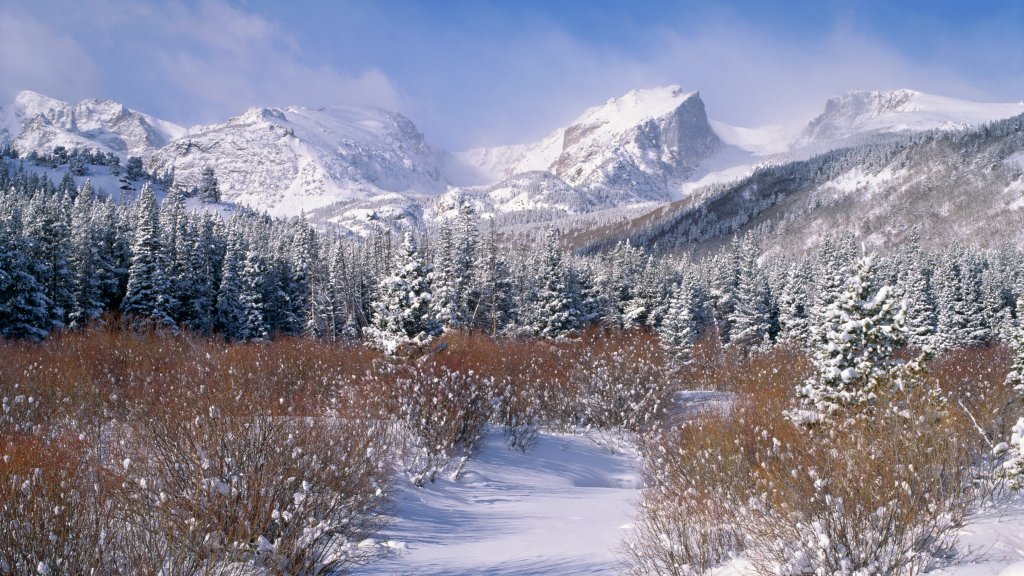
Glacier Creek, Rocky Mountain National Park, CO
Sign in to add this photo to your favorites and desktop wallpaper rotation.
Glacier Creek is a picturesque waterway located in Rocky Mountain National Park, Colorado. It originates from the high-altitude snowfields and glaciers of the Continental Divide, flowing through the park's rugged terrain. The creek is known for its clear, cold waters and scenic beauty, making it a popular spot for visitors seeking outdoor recreation and natural beauty. As it travels through the park, Glacier Creek passes through lush forests, alpine meadows, and rocky landscapes, offering a diverse range of habitats for wildlife. The area around the creek is home to a variety of plant and animal species, including elk, mule deer, and numerous bird species. Hiking trails in the vicinity of Glacier Creek provide access to stunning vistas and opportunities to explore the natural environment. One of the most popular trails is the Glacier Gorge Trail, which leads hikers to several notable landmarks, including Alberta Falls and Mills Lake. These trails offer breathtaking views of the surrounding mountains and valleys, making them a favorite among nature enthusiasts and photographers. Glacier Creek is also an important part of the park's hydrology, contributing to the larger watershed that supports the region's ecosystems. Its pristine waters are a vital resource for the flora and fauna of Rocky Mountain National Park. Overall, Glacier Creek is a highlight of the park, offering visitors a chance to experience the serene beauty and ecological richness of the Rocky Mountains. Whether you're interested in hiking, wildlife watching, or simply enjoying the tranquility of nature, Glacier Creek is a must-see destination within the park.