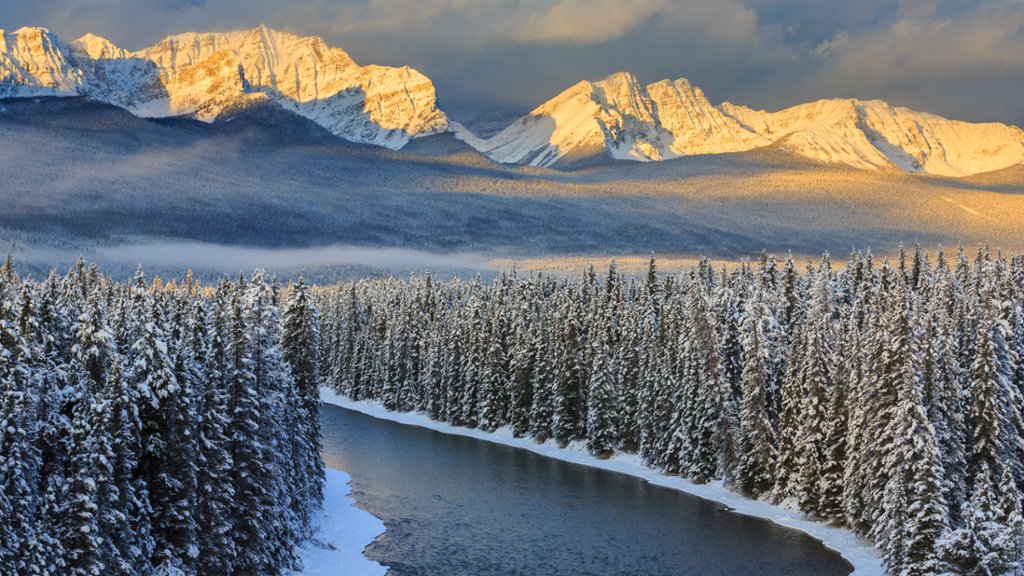
Castle Mountain, Banff National Park, Canada
Sign in to add this photo to your favorites and desktop wallpaper rotation.
Castle Mountain is a stunning peak located in Banff National Park in the Canadian Rockies. It stands at an impressive 2,766 meters (9,075 feet) tall and is a popular destination for hikers, climbers, and outdoor enthusiasts. The mountain gets its name from its distinctive castle-like appearance, with its rugged and jagged peaks resembling the turrets and walls of a medieval fortress. Castle Mountain is part of the Bow Range and is located near the town of Banff in Alberta, Canada. There are several hiking trails and routes that lead up to the summit of Castle Mountain, offering breathtaking views of the surrounding mountains, valleys, and forests. The mountain is also a popular spot for rock climbing, with a variety of challenging routes for climbers of all skill levels. Castle Mountain is a designated UNESCO World Heritage Site and is protected as part of Banff National Park, one of Canada's most famous and beautiful national parks. The park is home to a diverse range of wildlife, including grizzly bears, elk, and mountain goats, making it a popular destination for nature lovers and wildlife enthusiasts. Overall, Castle Mountain is a must-see destination for anyone visiting Banff National Park, offering stunning natural beauty, challenging outdoor activities, and a chance to experience the breathtaking Canadian Rockies up close.